Installation
Info
Meowtils is a one-time installation, after following these steps it will always inject into your game at startup.
Any future updates will be handled by the Auto-Updater, which means you won't have to manually replace any files or install it again.
The Auto-Updater can still be disabled if you want to update manually.
Forge
1: Install Forge
If you already have Forge installed you can skip this step.
Warning
You can use third-party launchers for Forge, such as Prism Launcher or Feather Client, however these will have different installation steps.
Certain launchers may not be supported.
-
Download Forge Installer.
-
Execute the installer by clicking/opening it.
-
In the window, select Install client, then click OK.
-
After installation is complete, open your Minecraft Launcher and select Forge in your versions dropdown menu (where you select which Minecraft version to use). This menu is found when making/editing installations.
Full name:release 1.8.9-forge1.8.9-11.15.1.2318-1.8.9 -
Launch your game once to create the necessary files, or manually navigate to your instance folder (by default, .minecraft), then create a folder called
mods.
Note
If you are unable to run the .jar, you will need to install Java.
2: Add Meowtils
-
Add the Meowtils jar to your
modsfolder.
3: Launch Minecraft
Now launch Minecraft, Meowtils should be loaded.
It is recommended that you check out Basic Usage in order to learn how to use Meowtils.
Lunar Client
Info
If you have issues after uninstalling go to the section further down on this page.
1: Install Lunar Client
-
Follow their installation steps.
2: Download Meowtils
3: Follow Meowtils installation steps
-
Execute the Meowtils jar by clicking/opening it.
-
Click
Installin the Install on Lunar Client section.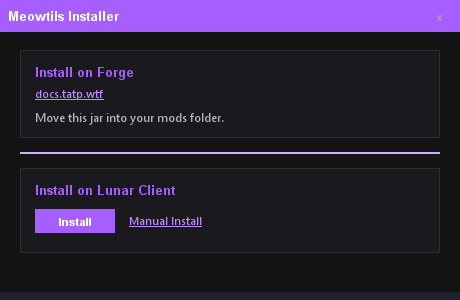
-
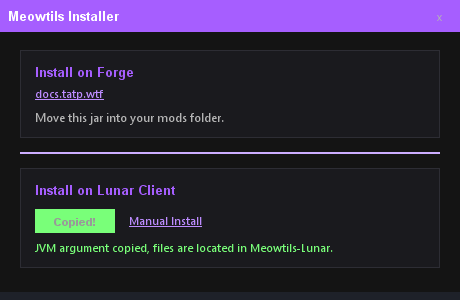
Wait for installation to complete, there should now be a JVM Argument copied to your clipboard.
Note
If you are unable to run the .jar, you will need to install Java.
4: Add Meowtils to Lunar
-
Open settings in Lunar Launcher (bottom left corner).
-
Enable advanced mode, next to the search bar;

-
Navigate to the Game Settings section, scroll down until you find the JVM Arguments box.
-
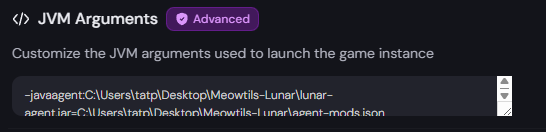
Paste the JVM Arguments that were copied from previous step into this box.
-
If visible, click the save icon;

5: Confirm it is installed correctly
There should be a folder called Meowtils-Lunar created in the same directory as the jar you used for installation. This contains all necessary files.
You should also have your JVM Arguments in settings;
6: Launch Minecraft
Now launch Minecraft, Meowtils should be loaded.
It is recommended that you check out Basic Usage in order to learn how to use Meowtils.
Note
If installation didn't work for you, follow the manual installation guide below.
Lunar Client Manual
Warning
These steps require you to edit multiple files that you may not be familiar with, and if anything is done incorrectly it will fail. It is recommended that you use the Meowtils Installer shown above which automates all of this for you, if possible.
This is just a fall-back if the installer fails.
1: Download files
2: Extract and rename
-
Extract the downloaded
Manual-Installarchive. -
Rename the jar to
Meowtils.jar, this is just for convenience. Then put this jar in the extracted `Manual-Install folder.
3: Open agent-mods.json
Edit the file path so it points towards the Meowtils jar.
Example
Info
The path will look different depending on operating system, but on Windows it uses \, in this case you need to insert an extra \ as an escape character. This is shown in the example above.
4: Construct the JVM Argument
The JVM Argument points to the agent jar, and the agent json.
Agent jar: -javaagent:C:\Users\tatp\Desktop\Meowtils-Lunar\lunar-agent.jar
Agent json: =C:\Users\tatp\Desktop\Meowtils-Lunar\agent-mods.json
Insert the correct path to each file, and then combine them.
Example
5: Add Meowtils to Lunar
-
Open settings in Lunar Launcher (bottom left corner).
-
Enable advanced mode, next to the search bar;
-
Navigate to the Game Settings section, scroll down until you find the JVM Arguments box.
-
Paste the JVM Arguments that you constructed from previous step.
-
If visible, click the save icon;
6: Launch Minecraft
Now launch Minecraft, Meowtils should be loaded.
It is recommended that you check out Basic Usage in order to learn how to use Meowtils.
Uninstallation
Forge Uninstall
Simply remove the Meowtils jar from your mods folder.
Lunar Client Uninstall
-
Remove files
Delete the folder where the relevant files are located, which is where the
Meowtilsjar is located. -
Clear JVM Arguments
Go into the Lunar Launcher and clear out the JVM Arguments, which is where you put them during installation.
Failure
If you are crashing after this, you need to delete the bake cache.
Steps:
-
Navigate to
.lunarclient, usually located in your user directory. -
Go to
offline→multiver→cache. -
Delete
bake.zip, it will be located in one of the folders that are located incache.